PDF is the format everything eventually needs to become. Job applications, invoices, contracts, presentations, spreadsheets — they all get converted to PDF before they go anywhere important, because PDF is the only format that looks identical on every device, every operating system, and every printer.
This guide covers every common conversion: Word to PDF, Excel to PDF, PowerPoint to PDF, JPG to PDF, HTML to PDF, and the reverse conversions you need when you receive a PDF and need to edit it. Every method listed here works free, in your browser, with no file upload to an external server.
To convert any file to PDF free: open ToolFlow AI, select the relevant conversion tool (Word to PDF, Excel to PDF, JPG to PDF, etc.), drag in your file, and download the result. No signup, no upload to a server — conversion runs in your browser and your file never leaves your device.
Table of contents
- Why everything ends up as a PDF
- How to convert Word to PDF
- How to convert Excel to PDF
- How to convert PowerPoint to PDF
- How to convert JPG or PNG to PDF
- How to convert a webpage or HTML to PDF
- Reverse conversions: PDF back to editable formats
- What to do after converting
- PDF converter comparison
- Why file privacy matters when converting
- Frequently asked questions
Why everything ends up as a PDF
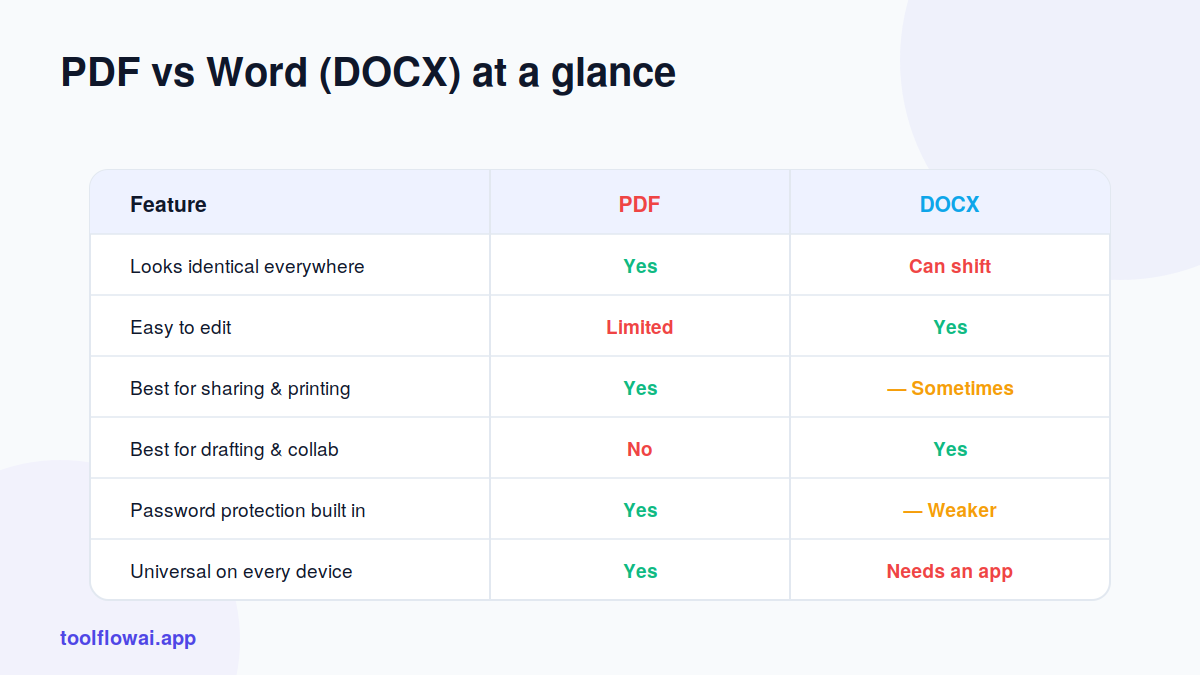
Three things make PDF the default for anything being shared or printed. First, layout lock: a PDF renders identically regardless of which fonts, software version, or operating system the recipient has. A Word document shared between a Mac and a Windows PC can look completely different if the recipient doesn't have the same fonts installed. The PDF always looks exactly as you designed it.
Second, PDFs are genuinely harder to accidentally edit. When you send someone a Word document, they can change it — and if you're sending a contract, an invoice, or a quote, that's a problem. PDF preserves the document as a read-only record by default (though it can be unlocked if needed).
Third, PDFs are universally compatible. Every modern device can open a PDF without special software: iOS, Android, Windows, Mac, Chromebook, even smart TVs. No one has ever said "I can't open this PDF." You cannot say the same for .docx, .xlsx, or .pptx.
How to convert Word to PDF
Word to PDF is the most common conversion, and it's the one where formatting fidelity matters most — a Word document can use complex styles, headers, footers, columns, and embedded images that need to survive the conversion intact.
Option 1: ToolFlow Word to PDF converter (browser, no software needed)
- Open the
- Drag your .doc or .docx file onto the upload area, or click to browse
- Click Convert — processing takes a few seconds and runs locally in your browser
- Download the PDF
This works on Windows, Mac, iPhone, and Android. It supports .doc and .docx files, preserves tables, images, fonts and formatting, and doesn't require a Microsoft Office installation. Your file never leaves your device.
Option 2: Save as PDF in Microsoft Word
If you have Microsoft Word: File → Save As → select PDF from the format dropdown. This produces the highest-fidelity output since Word itself handles the conversion, but requires Word to be installed.
Option 3: Google Docs
Upload the .docx to Google Drive, open it in Docs, then File → Download → PDF Document. Free and reliable, though complex formatting occasionally shifts slightly in the Google Docs rendering.
For a full breakdown of all 8 methods including mobile options, see the complete Word to PDF guide.
How to convert Excel to PDF
Excel to PDF is trickier than Word to PDF for one specific reason: spreadsheets are designed to be infinite in width, while PDFs have fixed page dimensions. A wide spreadsheet converted without any print-area settings will often produce a PDF where columns are cut off or the content is shrunk to unreadable size.
Before converting: set your print area
If you're converting in Excel itself, select the cells you want to include, then use Page Layout → Print Area → Set Print Area before exporting. This tells the converter exactly what to include and prevents cut-off columns.
Convert Excel to PDF with ToolFlow
- Open the
- Upload your .xls or .xlsx file
- Select which sheets to include if your workbook has multiple sheets
- Download the PDF
The converter handles formulas, merged cells, and basic charts. Very complex charts with custom fonts may render slightly differently — for those, exporting from Excel directly gives the most accurate output.
For a detailed comparison of all conversion methods including iPhone, Android, and Google Sheets options, see the Excel to PDF guide and 8 methods for Excel to PDF.
How to convert PowerPoint to PDF
PowerPoint to PDF conversion preserves slides as fixed pages, which makes it ideal for sharing a presentation with someone who doesn't have PowerPoint. The PDF version can't be edited or accidentally advanced, which also makes it better for sending to clients or printing.
What gets preserved and what doesn't
Slide layouts, text, images, shapes, and basic animations (as static frames) convert cleanly. What doesn't survive: slide transitions and animations (they become static), embedded video, and audio. If your presentation relies on any of those, share the .pptx alongside the PDF or use a dedicated presentation platform.
Convert PowerPoint to PDF with ToolFlow
- Open the
- Upload your .ppt or .pptx file
- Each slide becomes one PDF page — download and share
Directly from PowerPoint
File → Export → Create PDF/XPS. Choose "Standard" quality for email sharing, "High" for print. Under Options you can choose specific slides, include or exclude presenter notes, and set whether each slide gets its own page or multiple slides appear per page (useful for handout-style PDFs).
How to convert JPG or PNG to PDF
Image to PDF conversion has two distinct use cases with different requirements. The first is combining multiple photos into a single shareable document — a common need for submitting scanned documents, photo IDs, or portfolios. The second is turning a single image into a PDF for printing at a specific size.
Single image to PDF
- Open the
- Upload your JPG, PNG, or WEBP file
- The image becomes a single-page PDF sized to fit the image dimensions
- Download the result
Multiple images to PDF
Upload multiple images to the same tool — they'll become sequential pages in one PDF. Drag to reorder them before converting if the sequence matters (for a portfolio or a multi-page scan, for example).
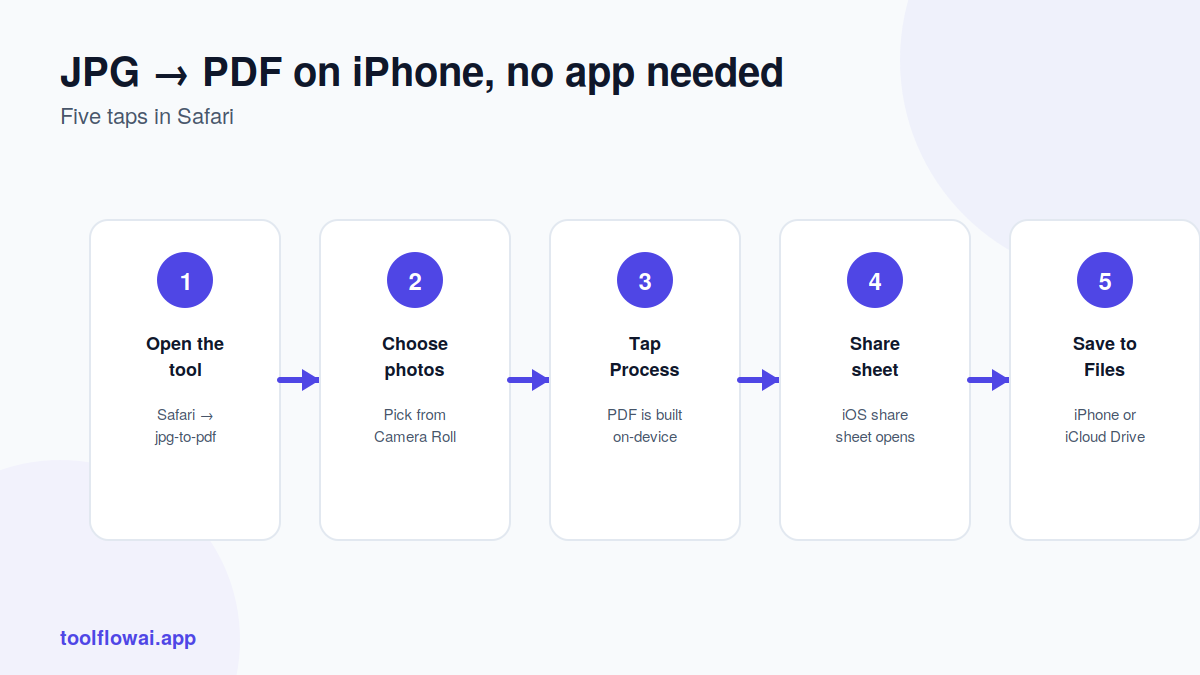
If you're specifically on iPhone, see the JPG to PDF on iPhone guide which covers the built-in iOS methods alongside the browser tool.
Image quality note: the PDF output matches the resolution of your input image. If you're converting for printing, make sure the source image is at least 150 DPI at the intended print size — lower resolution images will look blurry in print even though they look fine on screen.
How to convert a webpage or HTML to PDF
HTML to PDF is the most technically complex of these conversions because web pages aren't designed for fixed-size pages — they're fluid, dynamic, and often load content from external sources that may not be available at conversion time.
Convert HTML to PDF with ToolFlow
- Open the
- Paste your HTML code or upload an .html file
- The tool renders the HTML and exports it as a fixed-layout PDF
- Download the result
Save a webpage as PDF from your browser
The fastest method for a live webpage: Ctrl+P (or Cmd+P on Mac) → change the destination to "Save as PDF" → adjust margins and scale → Save. This captures exactly what you see in the browser, including dynamic content that's already loaded. The limitation is that it captures the page at your current viewport width — narrow windows produce narrow PDFs.
When HTML to PDF gets complicated
External resources (fonts loaded from Google Fonts, images from CDNs, CSS from separate files) may not all render correctly if they require a live internet connection at conversion time. For the most reliable output on complex pages, the browser print-to-PDF method is usually more accurate than a standalone conversion tool, since your browser already has all the resources loaded.
Reverse conversions: PDF back to editable formats
The reverse conversions are harder than forward ones, and it's important to set accurate expectations before you start.
PDF to Word
A PDF that was originally created from a Word document (called a "native PDF") converts back to Word relatively cleanly — text, basic tables, and layout will be mostly preserved, though you'll almost always need to clean up formatting afterward. A scanned PDF (a photo of a physical document) requires OCR (optical character recognition) to extract any text at all, and the result will need more editing.
For a full explanation of what changes and what to expect, read the PDF to Word guide.
PDF to Excel
Tables inside PDFs convert to Excel with varying accuracy depending on how the PDF was created. Clean tables from native PDFs extract well. Merged cells, complex column spans, and heavily formatted financial reports often need manual cleanup after conversion.
PDF to JPG
The cleanest of the reverse conversions — every page of the PDF becomes a separate JPG image. Useful for extracting specific pages as images for presentations, websites, or social media.
See the full PDF to JPG guide for quality settings and page selection options.
What to do after converting
Once you have the PDF, three common follow-up tasks come up regularly:
Reduce the file size
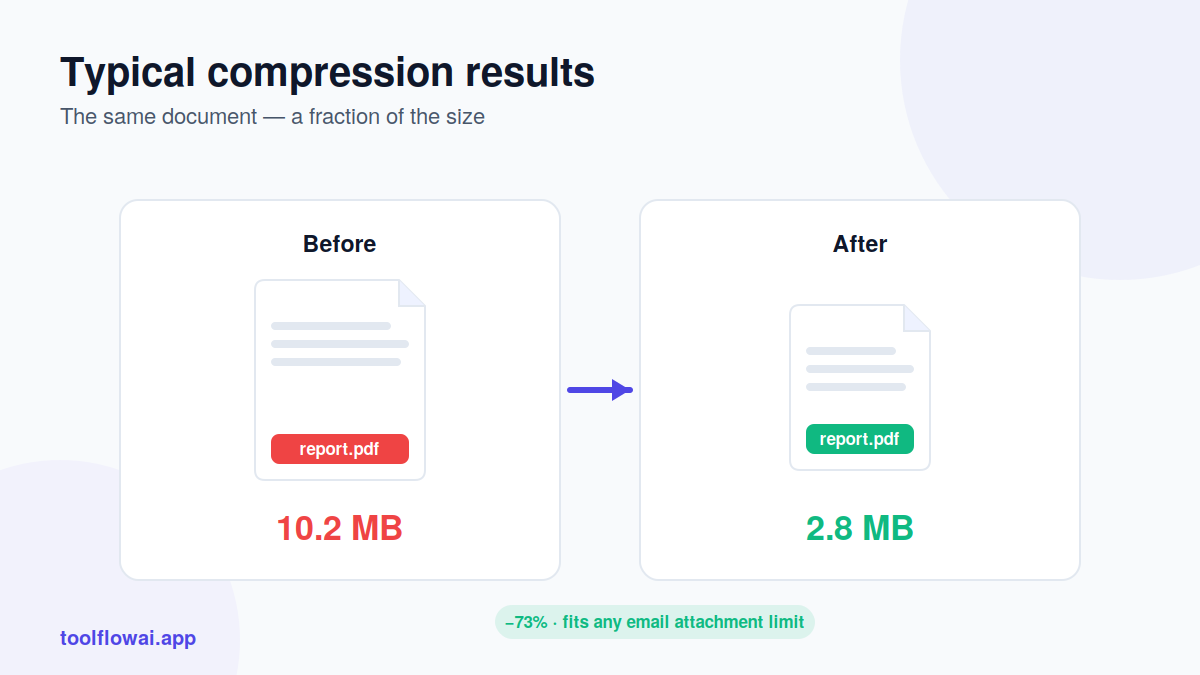
Converted PDFs are often larger than necessary, especially if they came from image-heavy Word documents or high-resolution photos. A large PDF bounces back from email attachments (most services cap at 10–25MB) and loads slowly in browsers. Use the to reduce file size without visible quality loss for screen viewing. The PDF compression guide covers what level of compression to use for different situations.
Combine multiple PDFs into one
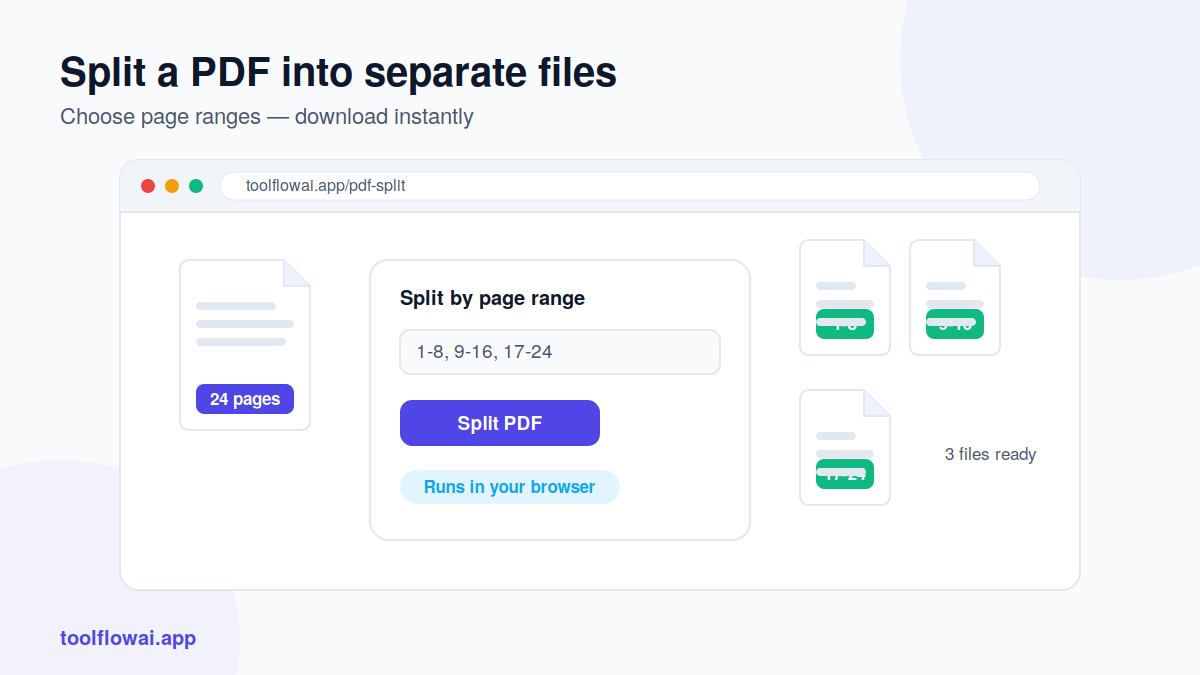
If you've converted several separate files and need them as one document — a multi-part report, a complete application pack, a portfolio — use the . Drag to reorder pages before merging. See the PDF merge guide for tips on page ordering and handling large numbers of files.
Unlock a password-protected PDF
For a PDF you received that already has a password, use — provided you have the authority to remove the restriction.
PDF converter comparison
| Tool | Free | File upload | Signup needed | File size limit | Formats |
|---|---|---|---|---|---|
| ToolFlow AI | ✓ Always free | ✓ Never | ✓ Never | No limit | Word, Excel, JPG, HTML + |
| Smallpdf | Limited (2/day) | Yes — to their servers | Optional (free tier) | 5 GB (paid) | Word, Excel, PPT, JPG |
| iLovePDF | Limited | Yes — to their servers | Optional (free tier) | 200 MB (free) | Word, Excel, PPT, JPG |
| Adobe Acrobat online | No (trial only) | Yes — to Adobe servers | Yes | 100 MB | Most formats |
| Microsoft Word (desktop) | ✓ If you own Word | ✓ Never | ✓ Never | No limit | Word only |
Why file privacy matters when converting
Most online PDF converters work by uploading your file to a remote server, converting it there, and sending the result back to you. For a document that contains personal information — a payslip, a contract, a medical record, a tax return — that upload is a privacy risk. You're sending your file to a third party, trusting their security, their data retention policy, and their compliance with privacy regulations.
ToolFlow's conversion tools run entirely in your browser using client-side JavaScript. The conversion happens on your own device. No file is uploaded to any server. You can verify this by turning off your internet connection after the page has loaded — the tool will still work, because your file never goes anywhere.
This is the meaningful technical difference between ToolFlow and upload-based converters, and it matters most for the documents you'd least want a stranger to have access to.
Convert any file to PDF — free, right now
No signup. No upload. No file size limit. Works on any device.
Related tools
Frequently asked questions
Is converting files to PDF really free with no catch?
Yes — ToolFlow's conversion tools are free with no file limits, no watermarks, and no signup. The site is supported by optional ads, not by charging for conversions or hiding features behind a paywall.
Does my file get uploaded to a server when I convert it?
No. ToolFlow's PDF tools run client-side in your browser. Your file is processed on your own device and never transmitted to any external server. You can test this by going offline after the page loads — the converter still works.
What's the maximum file size I can convert?
There's no enforced file size limit. The practical limit is your device's available RAM, since the conversion runs locally. For very large files (100MB+), you may see slower processing on older devices — split the file first if needed.
Will my formatting survive the conversion?
For native PDF creation from Word or Excel, formatting is preserved well — fonts, tables, images, and layout all carry over. The most common issue is spreadsheets with very wide column sets; setting a print area before converting fixes this. For reverse conversions (PDF back to Word or Excel), expect to do some cleanup, particularly for scanned documents.
Can I convert a PDF back to an editable Word document?
Yes, with realistic expectations: native PDFs (created digitally) convert back to editable Word documents fairly cleanly, though minor formatting adjustments are common. Scanned PDFs are essentially images and require OCR to extract text — the result is usable but needs more editing. Use the and see the full guide for what to expect.
How do I combine multiple files into one PDF?
Convert each file to PDF first using the relevant tool, then use the to combine them into a single document. You can drag to reorder pages before merging.
Why is my converted PDF larger than the original file?
PDFs embed fonts and images in a way that can increase file size compared to the source format. After converting, run the result through the to reduce size — typically 40–70% reduction for image-heavy documents with no visible quality loss for screen viewing.
Does this work on iPhone and Android?
Yes — all tools are browser-based and work on mobile Safari and Chrome without any app installation. For iPhone-specific workflows, the JPG to PDF on iPhone guide covers both the browser tool and the built-in iOS method.
Can I convert a password-protected PDF?
You need to remove the password first. Use the if you know the password and have the right to remove it, then convert the unlocked version. See the PDF password removal guide for more detail.
What's the difference between PDF and PDF/A?
PDF/A is an archival standard designed for long-term preservation — it embeds all fonts and resources so the document can be rendered identically decades later, even if the original software no longer exists. Standard PDFs are fine for everyday sharing and printing; PDF/A is required for legal archiving and some government or regulatory submissions. Most online converters produce standard PDFs.