PNG and JPG are the two formats you encounter everywhere — phones save photos as JPG, designers export logos as PNG, and half the internet seems to use them interchangeably. They are not interchangeable. The two formats compress images in fundamentally different ways, which means choosing the wrong one can result in a 7 MB logo that should be 40 KB, or a blurry photo with blocky compression artifacts where there should be smooth gradients.
This guide explains exactly how each format works, when to use one over the other, and how to convert between them free in your browser.
The core difference: lossy vs lossless
Every image format makes a decision about what to do with pixel data when saving. PNG and JPG make opposite choices.
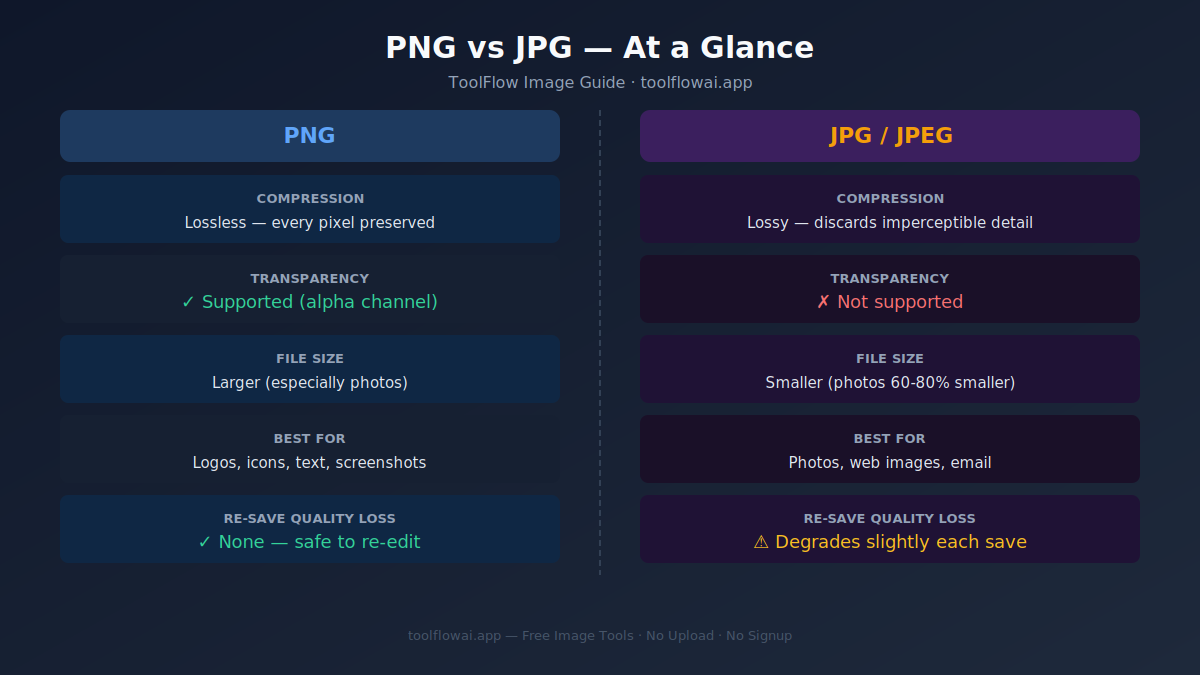
PNG uses lossless compression. Every single pixel in the original image is preserved exactly. When you open a PNG, decode it, and re-save it, the output is bit-for-bit identical to the input. Nothing is discarded. This is why PNG files can be large — the format refuses to throw anything away in exchange for a smaller file.
JPG uses lossy compression. When you save a JPG, the encoder analyses the image and discards detail that human vision is unlikely to notice: subtle colour variations between neighbouring pixels, fine noise in smooth areas like skies, and microscopic texture precision that never survives the trip to a screen anyway. The result is a file that looks identical to most eyes but can be 60–80% smaller than the same image saved as PNG.
The tradeoff is permanent: once you save something as JPG, the discarded data is gone. Re-open it, re-save it, and the encoder runs again — discarding slightly more. Do this many times and you will start to see it: blocky patches in skies, fuzzy halos around sharp edges. PNG, being lossless, never degrades on re-save.
File size: how big is the difference?
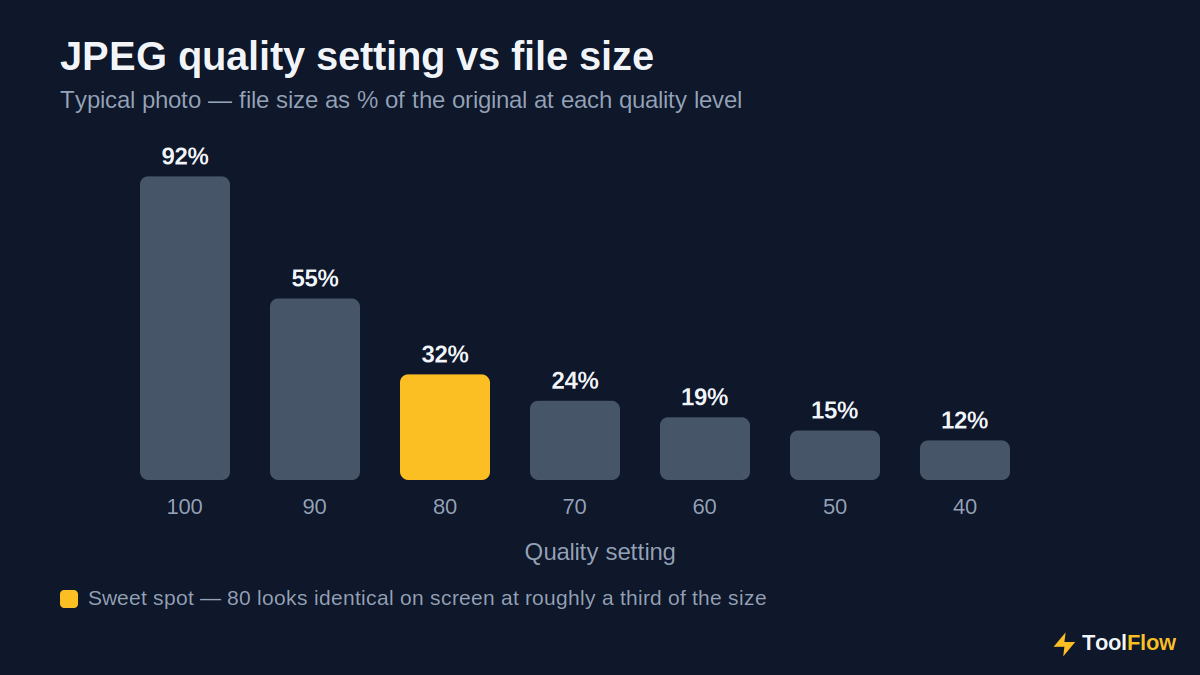
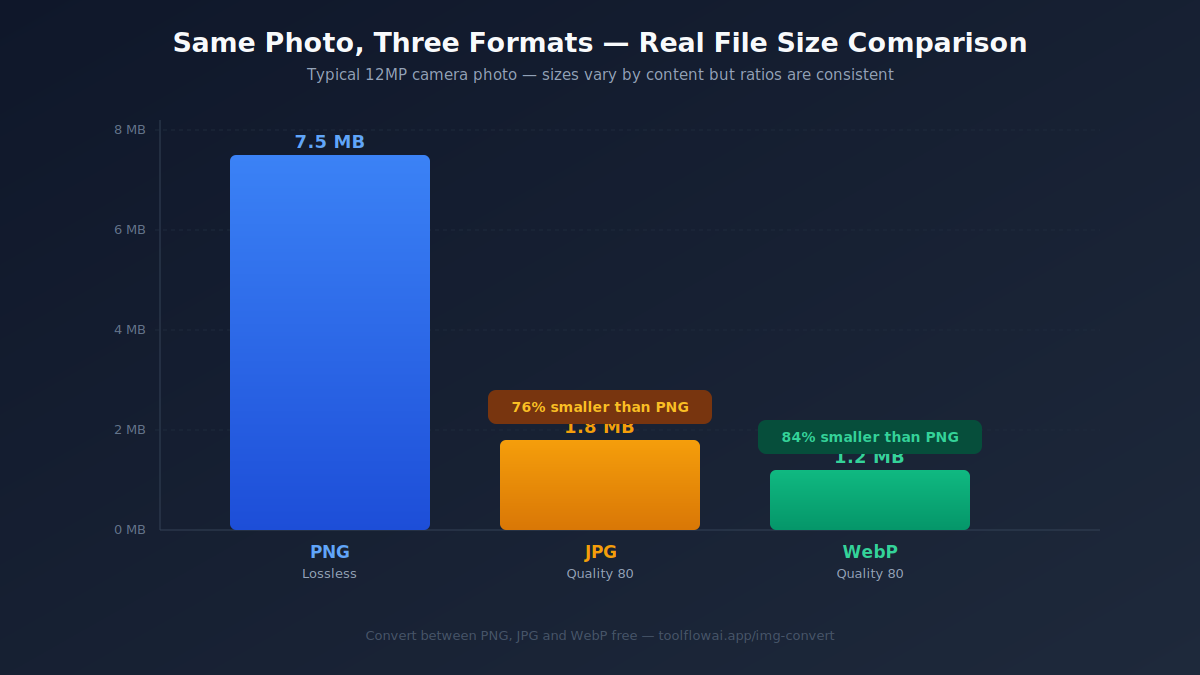
For photographs, the size gap between PNG and JPG is dramatic. A typical 12MP photo from a modern phone saved as PNG is around 7–9 MB. The same photo saved as JPG at quality 80 — the standard web sweet spot — is roughly 1.5–2 MB. That is 75–80% smaller, with no visible difference on a screen.
The reason for this gap is how the formats interact with photographic content. Photos are full of gradual colour transitions, fine texture, and millions of slightly different pixel values. JPG's lossy compression is specifically designed to exploit the limits of human colour vision, discarding exactly the kind of imperceptible detail that photos are full of. PNG has no such mechanism — it stores all that detail faithfully, at the cost of a large file.
For graphics — logos, icons, screenshots, charts — the dynamic reverses. These images contain large areas of flat colour, hard edges between elements, and text that must remain pixel-perfect. PNG handles all of this compactly because its compression is efficient for repetitive, predictable pixel patterns. JPG struggles: its compression algorithm introduces visible blur around sharp edges and text, making even simple graphics look slightly wrong.
Transparency: PNG wins, JPG cannot compete
PNG supports an alpha channel — a per-pixel transparency value that allows parts of an image to be fully transparent, partially transparent, or fully opaque. This is what makes PNG the standard format for logos, icons, and design assets: place a PNG with a transparent background onto any coloured surface and the edges blend perfectly.
JPG has no transparency support at all. Every JPG pixel is fully opaque — the format fills any transparent areas with white (or whatever background colour the encoder uses). This means a logo saved as JPG always has a background, making it impossible to overlay cleanly onto any colour other than white. For anything that needs a transparent background, PNG is the only option between the two formats.
When to use PNG
Use PNG whenever any of these conditions apply:
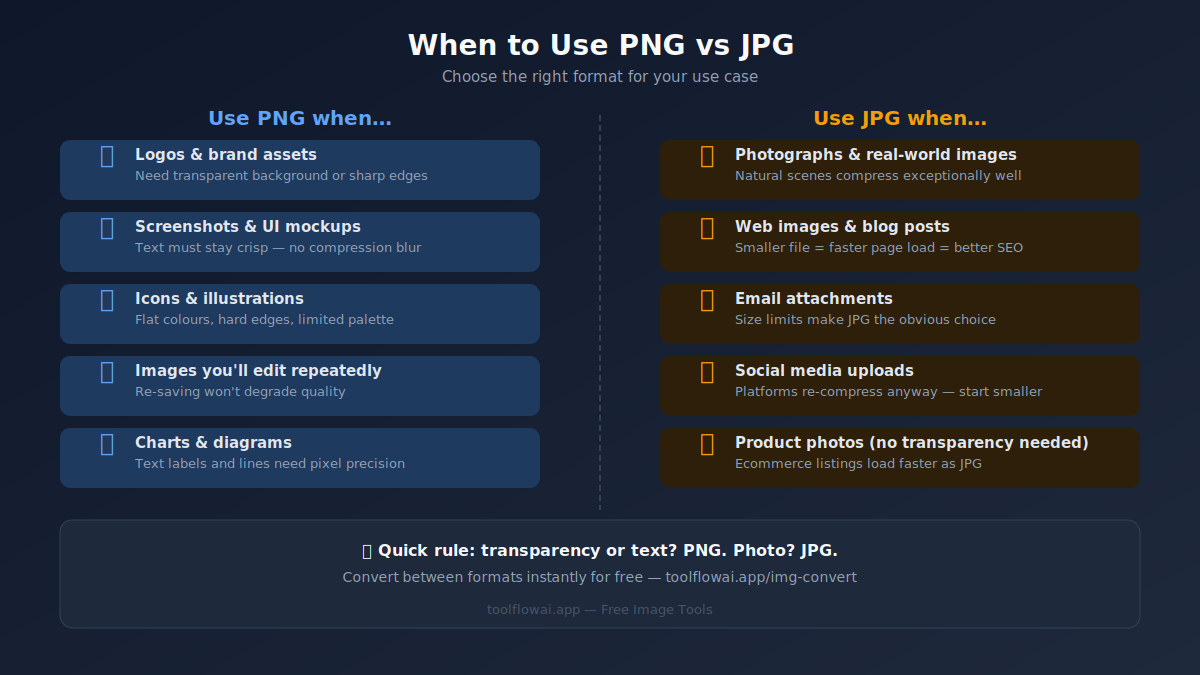
- The image has a transparent background — logos, icons, cutout photos, design overlays
- The image contains text — screenshots, UI mockups, charts with labels, diagrams
- The image uses flat colours and hard edges — illustrations, icons, infographics, logos
- You will edit and re-save the image repeatedly — PNG never loses quality on re-save
- Pixel precision matters — technical diagrams, pixel art, anything where blur is unacceptable
The single most common mistake with PNG is saving photographs in it. A PNG photo is not higher quality than a JPG photo at quality 80 — it just has a much larger file size for no perceptible benefit.
When to use JPG
Use JPG for photographs and any image where file size matters more than pixel-perfect precision:
- Photographs and real-world images — holiday photos, product shots, portraits, food photography
- Web images and blog post images — smaller files load faster and improve Core Web Vitals scores
- Email attachments — size limits make JPG the practical choice for photo attachments
- Social media uploads — platforms re-compress images anyway; uploading a smaller file gives the algorithm less to destroy
- Ecommerce product photos — especially when no transparent background is needed
What about WebP?
WebP is the format Google created specifically to replace both PNG and JPG on the web. It supports transparency (like PNG), uses lossy compression (like JPG), and achieves smaller files than either — typically 25–35% smaller than an equivalent JPG at the same quality level.
Browser support for WebP is now universal across Chrome, Firefox, Safari, and Edge, making it the best choice for any image destined for a website. The Image Converter outputs WebP alongside JPG and PNG — if you are preparing images for a website, WebP is worth considering for every photograph.
Where WebP still loses out is in non-browser contexts: many image editors, CMS upload handlers, and older tools either do not support WebP or handle it unreliably. For anything going into an editor, an email client, or a system that will process the image further, JPG or PNG remain the safer choice.
How to convert between PNG and JPG free
Converting between formats takes a few seconds in your browser — no software, no upload to a server, no account required.
- Go to the free Image Converter
- Upload your PNG or JPG (drag and drop works too)
- Choose your output format: JPG, PNG, or WebP
- Click Process
- Download the converted file
If you only need to go one direction, the PNG to JPG and JPG to PNG tools are single-click conversions with no format selector needed. Everything runs in your browser — your image is never uploaded anywhere.
One important note when converting PNG to JPG: if the PNG has a transparent background, the converter fills the transparent areas with white before encoding as JPG, since JPG cannot store transparency. If you need to keep the transparent background, keep the output as PNG or WebP.
Convert between PNG, JPG and WebP free
Instant, in-browser conversion. Your image never leaves your device.
Frequently Asked Questions
Is PNG better quality than JPG?
For photographs, not noticeably — a JPG at quality 80 looks identical to a PNG on screen, but is 60–80% smaller. PNG is technically lossless, meaning every pixel is preserved, but human eyes cannot detect the difference for photographic content at quality 80 and above. PNG is genuinely better for graphics, text, logos, and anything requiring a transparent background.
Does converting PNG to JPG reduce quality?
Yes — once. Converting a PNG photo to JPG applies the lossy compression once, which may cause very minor, usually imperceptible changes. But converting back and forth multiple times compounds the loss: each JPG save applies compression again. Keep your master copy as PNG or in a lossless format if you will edit it repeatedly.
Why is my PNG so much larger than my JPG?
Because PNG is lossless — it stores every pixel precisely without discarding anything. For photographs with millions of subtly different pixel values, this results in a much larger file than JPG, which discards imperceptible detail to achieve a fraction of the size.
Can I use JPG for a logo?
You can, but it is rarely a good idea. JPG compression introduces soft blur around sharp edges and text, making logos look slightly fuzzy. More importantly, JPG has no transparency support, so your logo will always have a white (or coloured) background — making it impossible to overlay cleanly on anything other than white.
Which format is best for websites?
WebP is the best format for web images — it is smaller than both PNG and JPG at equivalent quality and is now supported by all major browsers. If WebP is not an option, use JPG for photographs and PNG only for images that genuinely require transparency or pixel-perfect text.
Does JPG support transparency?
No. JPG has no alpha channel — every pixel is fully opaque. Any transparent areas in an image are filled with a background colour (usually white) when saved as JPG. Use PNG or WebP if transparency is required.
What is the best JPG quality setting?
Quality 80 is the standard recommendation for web images — files are roughly a third the size of quality 100 with no visible difference on screen. Quality 85–90 is appropriate if you need a little more fidelity (e.g. for product photography where you want to preserve fine detail). Avoid going below quality 65 unless file size is genuinely critical, as compression artifacts become noticeable in smooth areas.